Introducing Smart Scheduler - Your Passes-Powered Growth Assistant
Smart Scheduler helps you maintain consistent posting and engagement by automatically planning and sending your Posts or Mass DMs at optimal times.
We're excited to introduce Smart Scheduler, a game-changing tool that takes the stress out of staying consistent with your content. Think of it as your personal growth assistant that handles the heavy lifting of planning, pricing, and posting, so you can focus on creating amazing content for your fans.
If you've ever felt overwhelmed trying to maintain a consistent posting schedule or wished you had help optimizing when and how to share your content, Smart Scheduler is built for you.
What is Smart Scheduler?
Smart Scheduler is an intelligent automation tool that helps you stay consistent by automatically planning and sending your Posts or Mass DMs at optimal times. It analyzes your audience engagement patterns and handles the details that often slow creators down, from picking the perfect posting time to suggesting smart pricing and generating engaging captions.
You still maintain full control with a clean queue where you can review, edit, or cancel anything before it goes out to your fans.
Getting Started With Smart Scheduler
Setting up Smart Scheduler is simple, and you have three convenient ways to access it.
Through the Navigation Bar
- Navigate to Smart Scheduler in your left-hand sidebar and toggle on "Enable Smart Scheduler."
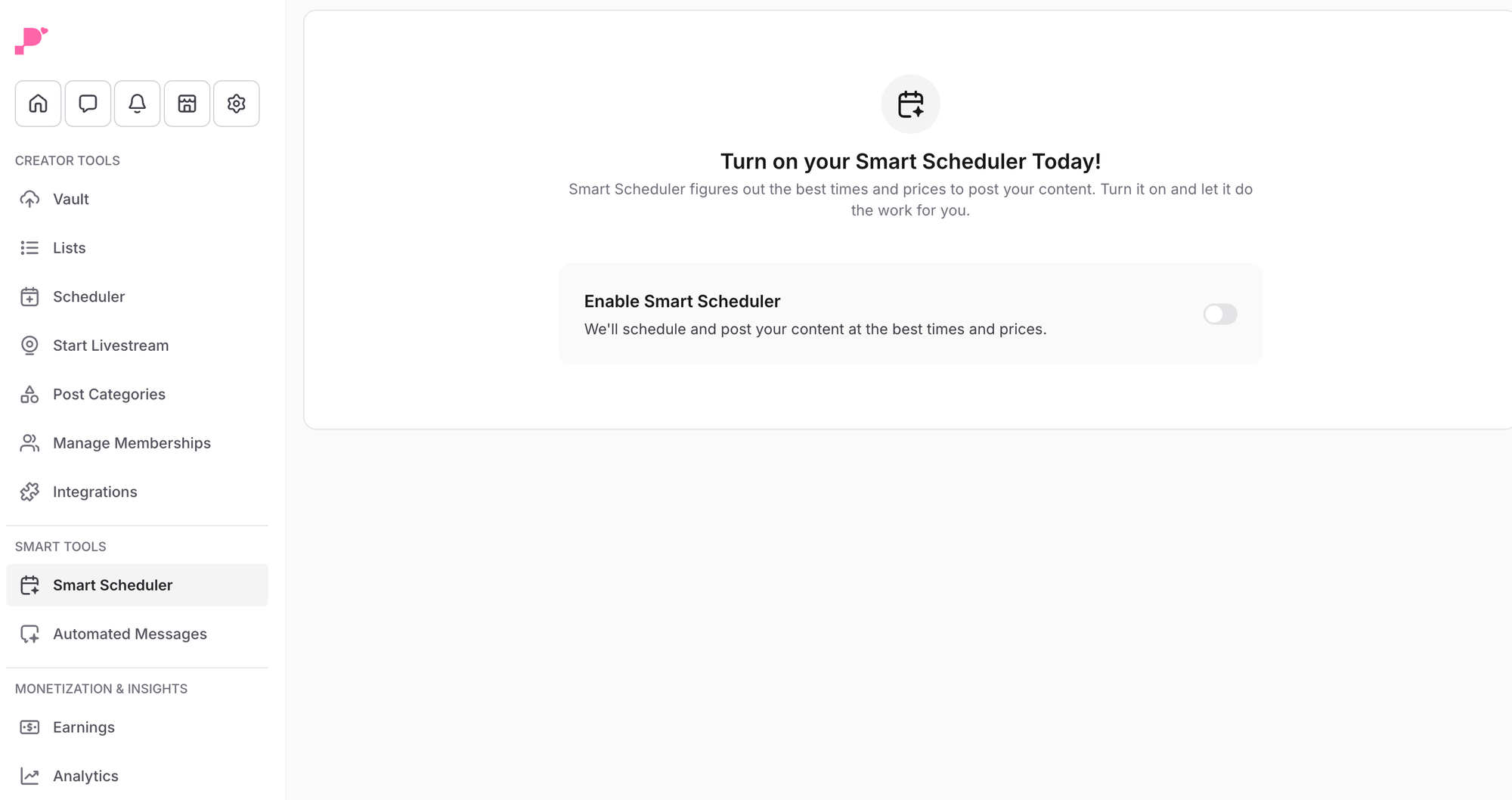
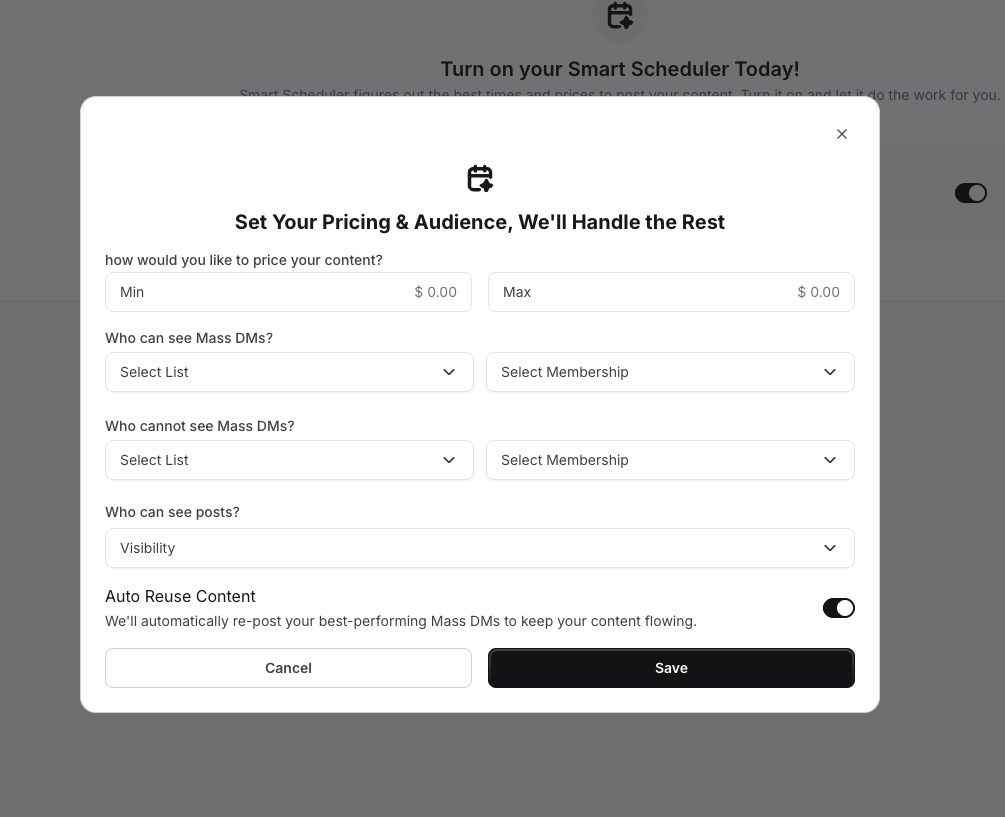
- A setup screen will appear to help you configure your Smart Scheduler parameters.
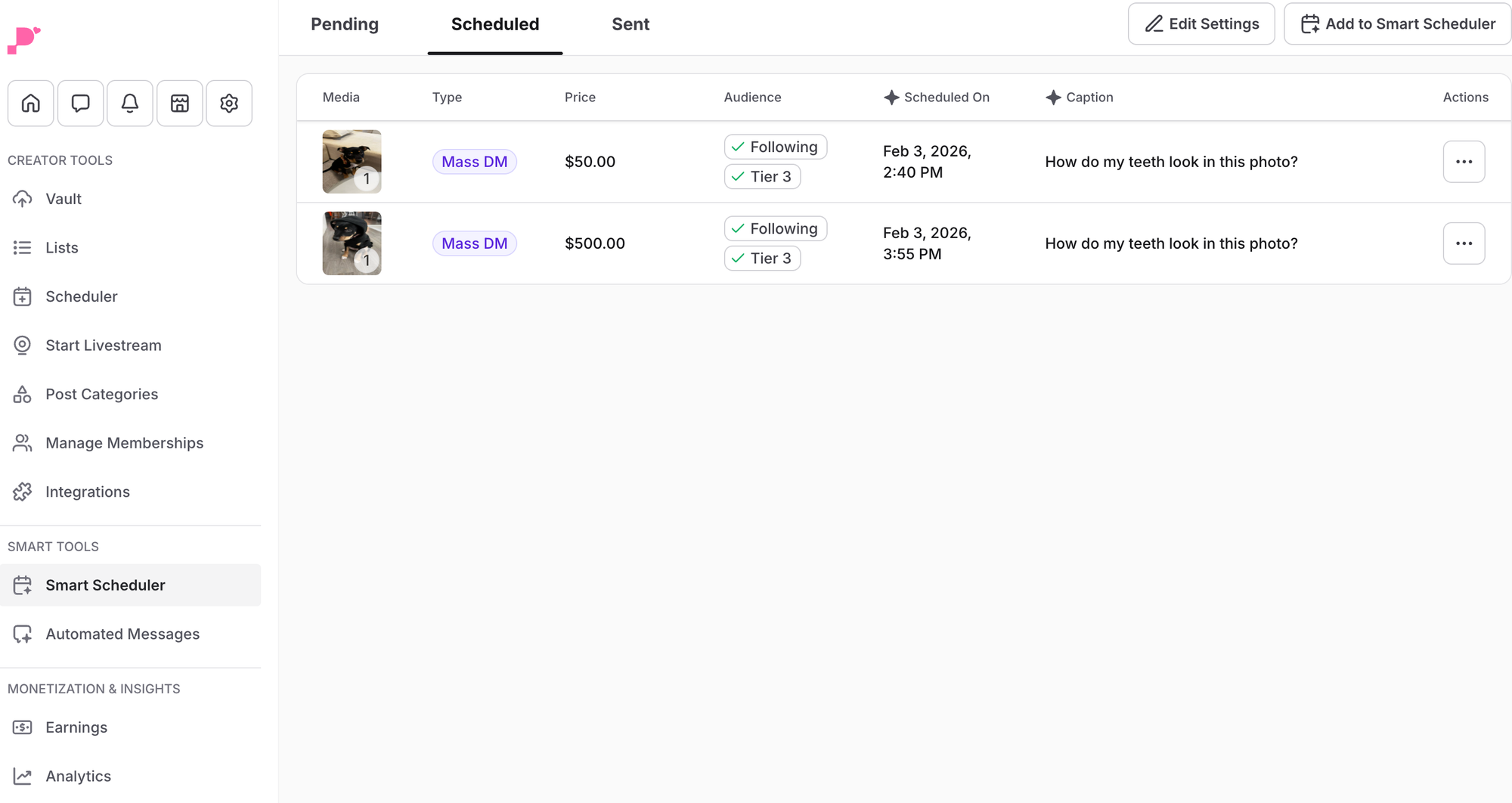
- Once you complete the initial setup, you'll see all your scheduled posts utilizing Smart Scheduler, plus an option to add new posts to the queue.
Using the Create Button
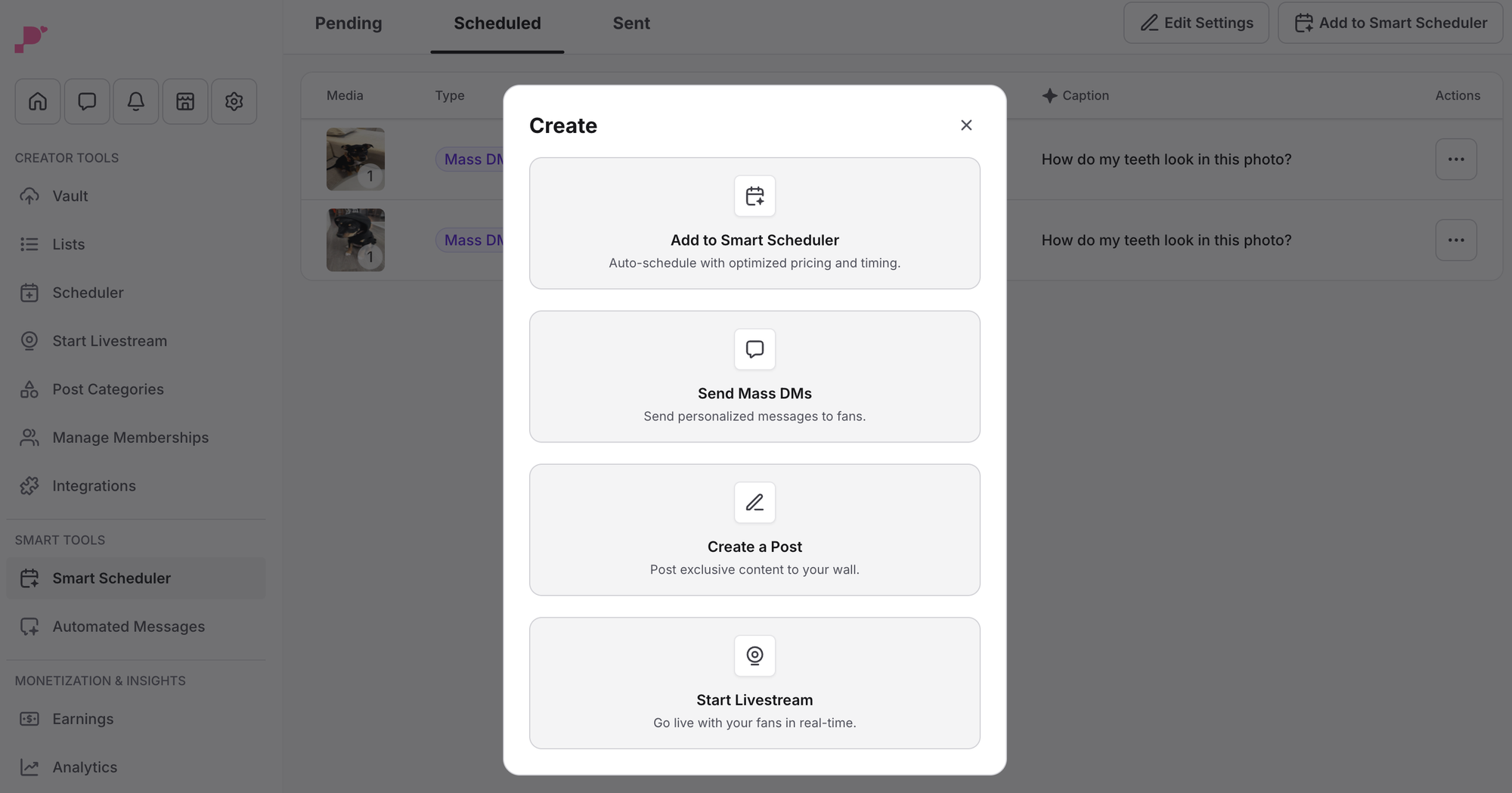
- Click the +Create button next to your profile, then select "Add to Smart Scheduler." This lets you set up specific posts or DMs to use with the Smart Scheduler tool right from your creation workflow.
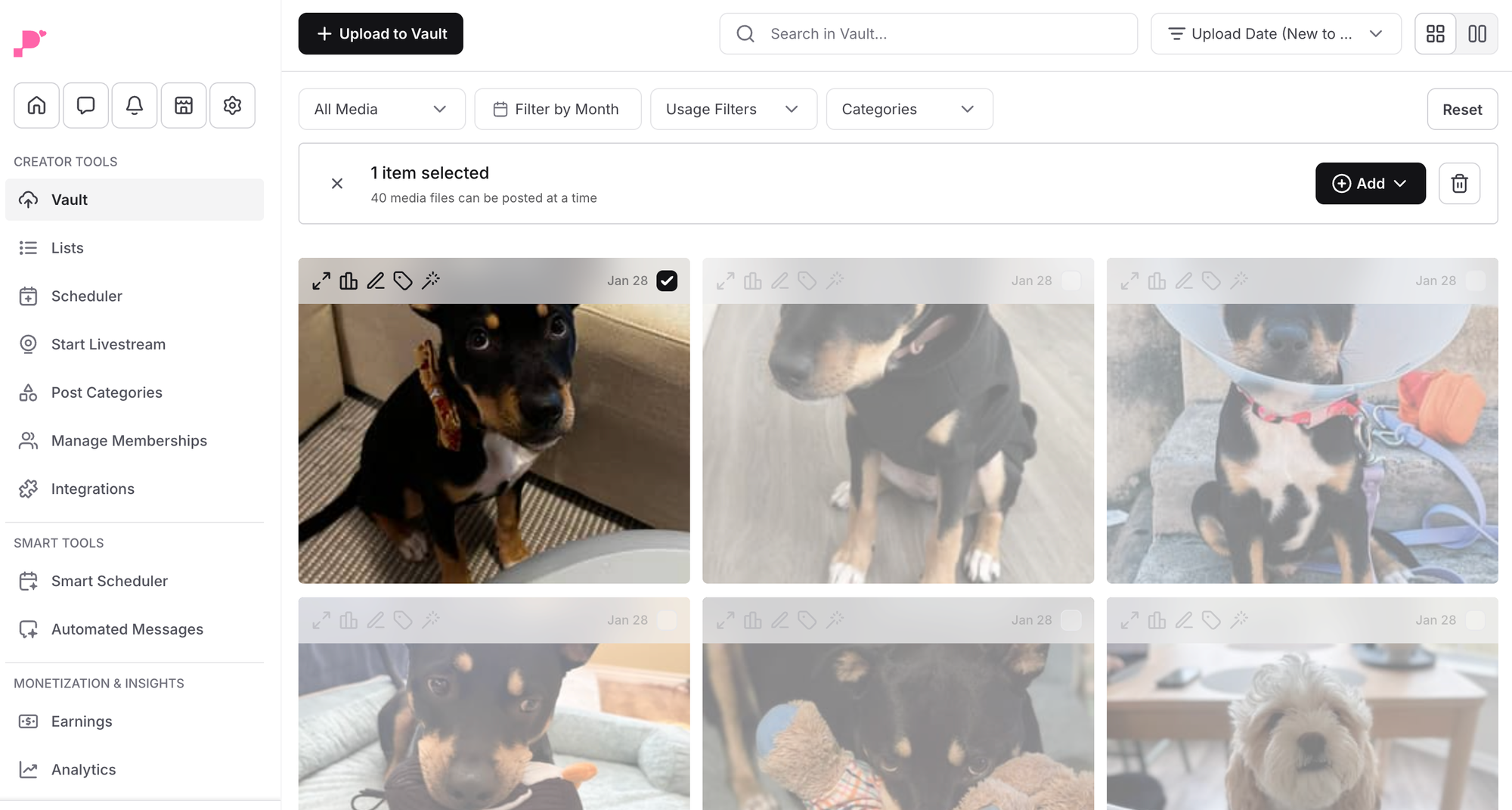
From Your Vault
- Head to Vault in the Navigation Bar and select "Add to Smart Scheduler" when you click the black +Add button. This makes it easy to put your existing content to work with Smart Scheduler's optimization features.
Understanding Your Smart Scheduler Queue
Once you've added content to Smart Scheduler, you can view everything in your Scheduler tab. Smart Scheduler-generated content appears with a distinctive gradient purple color with sparkles, making it easy to distinguish from regular scheduled posts:
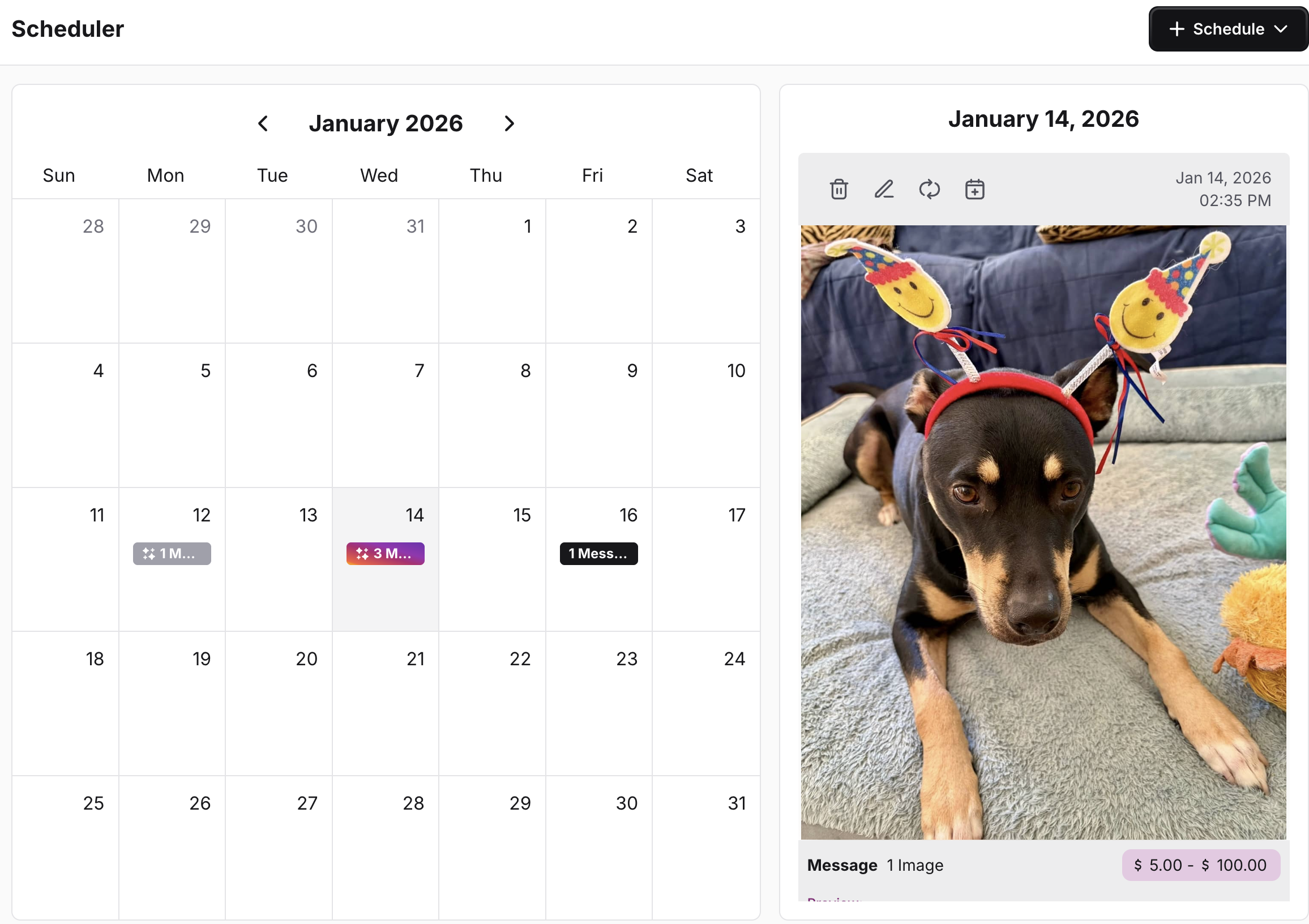
- Greyed out content means the post has already been sent to your fans
- Black content indicates a regularly scheduled post (not using Smart Scheduler)
- Purple gradient shows content actively managed by Smart Scheduler
Ready to let Smart Scheduler handle the heavy lifting? Enable it today and discover how automated optimization can strengthen your fan relationships and grow your presence.